Contract Actions
You can enter or scan in contract number.

Selecting the search option or show filters will display additional search features when searching for a contract. Ex. (Contract #, Customer Name, Contract Info, Item Number, etc).

Partial Search – Searching for Serial Number. Or part number performs a “Contains” style search. (Name, Alias, and barcode already did this style search). A search for ‘55’ will find XX55XX and 55XXXX and XXXX55. Previously it would only find 55XXX.
By entering in an * in the Contract Search field, will display all contracts types. (Open, Close, IMO, IRO, Quotes, Reservations)
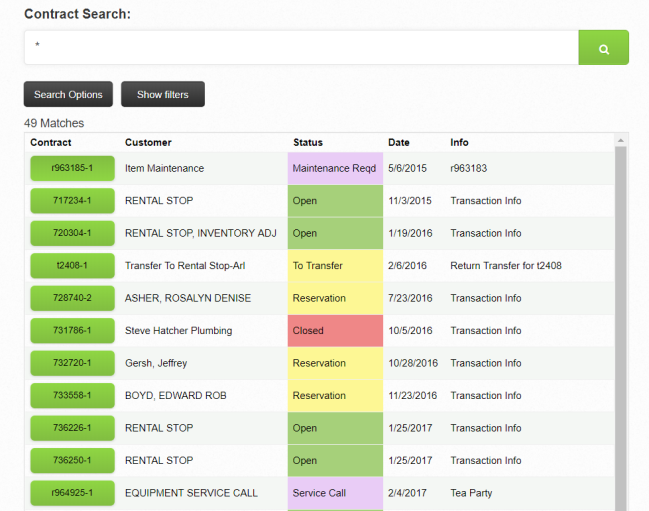
* Colors - Items and special fields will display the appropriate red, green, yellow or gray colors, as seen in Counter System and File Maintenance.
Selecting the contract number, will display more detailed information about the contract.
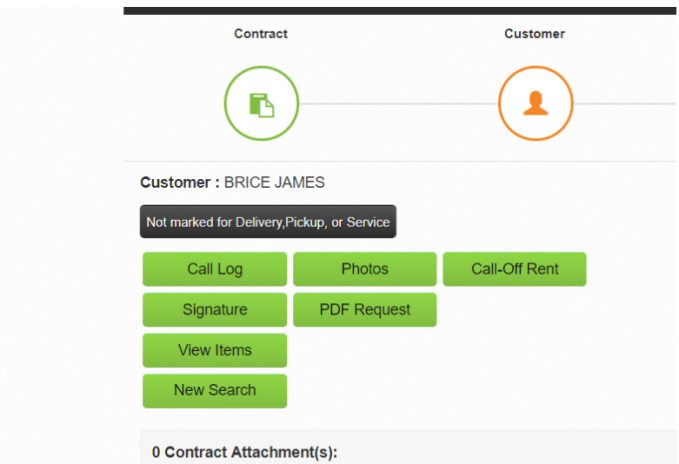
PDF Request: This allows for you to email you customer a current version of the contract. All you will need is an email address to enter and they will receive a copy of the contract. This will pull the default email format defined under the Contracts tab in Parameters.

Note: The email the customer will receive will contain in the body of the email from the default email letter that is defined in 9. Configuration<System Configurations<Email Letters.
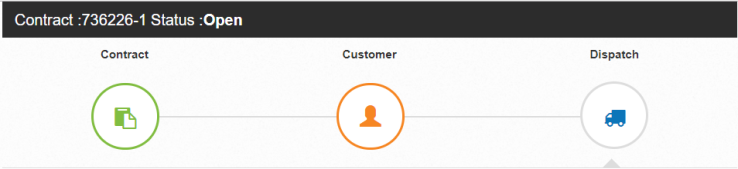
There are three icons, across the top of the screen, by selecting one of these icons, additional information will be displayed in relation to that particular icon (Contract, Customer, Dispatch)
Contract information will be displayed to include (Store, Information, Ordered By, Type of Customer, PO#, Job#, Salesman and Comments).
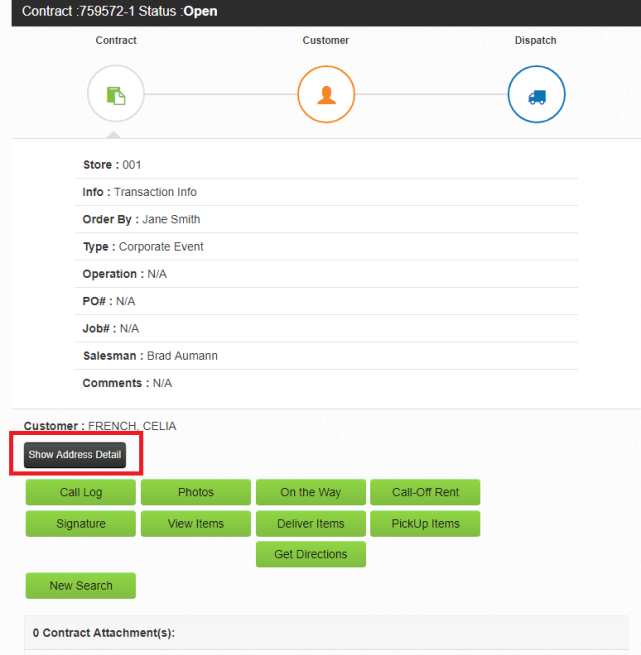
"Show Address Detail" When the Show Address Details button is tapped, Point of Rental pulls the information from the delivery tab on the contract. When the Site phone Number is tapped, this adds the telephone number into their phone dialer, allowing them to dial the number from Mobile Workforce.

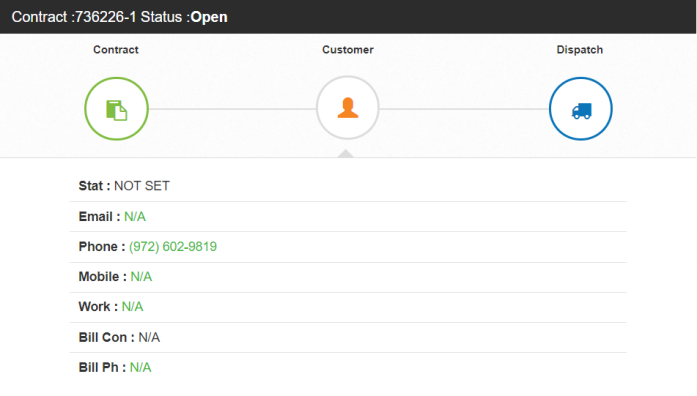
Customer information will be displayed to include (Status, Email, Phone, Mobile, PO#, Work, Billing Contact, Billing Phone).

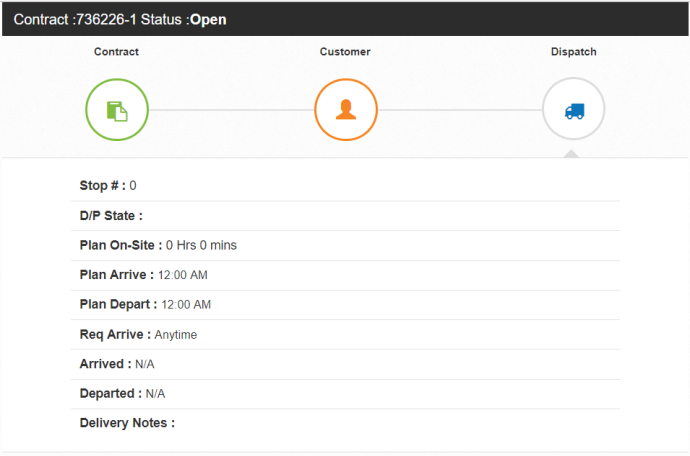
Dispatch information will be displayed to include (# of Stops, D/P State, Plan On-Site, Plan Arrive, Plan Depart, Required Arrive, Arrived, Departed, Delivery Notes).
There are many useful tools a salesman or driver can use to (access, enter or update) a contract in the field.
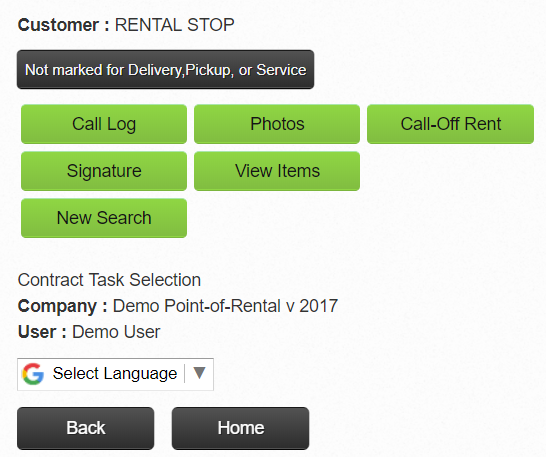
Call Log - Allows you to create a call log to the customers contract.

Once you enter the information and submit, you will see the status will change to "Call Log Success" letting you know the action was sent.

Photos - You can take an add photo's. The will up-linked and added to the customer contract under the attachments folder. To view the image in your point of rental, follow the following steps:
1. Go to <PORDrive>\WebTasks\Images\ContractImages\
2. Choose any year
3. Choose any month
4. Right click on one of the images
5. Select Open With

6. Choose Internet Explore

Call of Rent - Allows you to call an item off rent and add comments in the note section.
Signature- You can capture customers signature on-site and store it under the attachment tab in the customer contract.
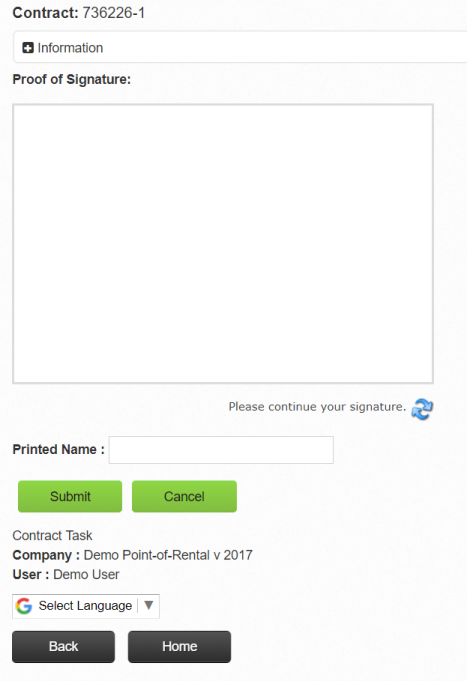
Once the task is submitted the GPS location and time stamp are stored and saved onto your company’s data store on Point-of-Rentals Workforce server.
View Items - You can view the items on the contact, to display (Qty, Key, Name, Status, Due Date, Part No, Substatus).
*Availability – When searching for inventory you will see the current availability display in the In and Out columns. Allowing Sales Reps to see what inventory is available when out on a jobsite. The same information is displayed when a specific item record is viewed. Values will be shown with a Red cell when less than 1 remains In, otherwise the cell will be Green.
*Note- this availability data is for the current day and updated every 5 minutes from your server by default.
New Search - Will allow you to search for other contracts.